Windows 11 in the cloud with a GPU: play and stream with Sunshine and Moonlight
An old game that only runs on Windows, a Windows-only tool, or simply a PC you can reach from anywhere: a Windows 11 server with a GPU covers all of these. The question is how well it works in practice. We installed a well-known free and open-source game, SuperTuxKart, on a Windows 11 server with an Intel UHD 770, and streamed it with Sunshine (on the server) and Moonlight (on the player’s side).
Results at a glance
- 111 fps at 1080p (96 fps “mostly stable”) in the SuperTuxKart benchmark on native Windows, 182 fps at 720p.
- Streaming with Sunshine costs almost nothing: 1080p H.264 video encoded by the GPU (Quick Sync), 8 ms of processing on the server on average, no frame dropped, and the game keeps its frame rate.
- Turn off V-Sync in your games: the server’s screen is virtual, and V-Sync only makes the game wait for it. Moonlight limits the frame rate on your side.
- Choose iGPU Power rather than iGPU Start for gaming: the game alone used more than half of the 2 vCPU of iGPU Start, and Power has twice the GPU share when other servers use the GPU.
Test setup
| Item | Value |
|---|---|
| Server | Windows 11 Pro, Intel UHD 770 (shared GPU), Intel graphics driver 32.0.101.7092 |
| Sizes tested | iGPU Start (2 vCPU) and iGPU Power (4 vCPU) |
| Game | SuperTuxKart 1.5 for Windows, built-in benchmark (recorded race, 38 s), OpenGL renderer |
| Streaming | Sunshine 2026.914 on the server, Moonlight 6.2 on a Linux client, H.264 1080p 60 fps |
| Network | client and server in the same data centre: on the Internet, add your connection’s latency |
Each figure is the game’s own measurement (“Typical”, “Mostly stable” and “Steady” FPS reported by SuperTuxKart at the end of the benchmark).
1. Why a virtual screen is needed
A cloud server has no monitor. Without one, Windows draws the desktop on a basic display adapter, and
Sunshine can only capture that adapter and encode on the CPU (its log shows libx264 [software]).
The fix is a virtual display driver attached to the Intel GPU. We used the open-source Virtual Display Driver (signed driver). Once it is installed and Sunshine is told to use the Intel GPU, Sunshine finds the hardware encoders:
Found H.264 encoder: h264_qsv [quicksync]
Found HEVC encoder: hevc_qsv [quicksync]
In C:\Program Files\Sunshine\config\sunshine.conf:
adapter_name = Intel(R) UHD Graphics 770The game then runs on the virtual screen, rendered by the GPU, and Sunshine encodes it in H.264 or HEVC. AV1 streaming is not available on this GPU: use H.264 or HEVC in Moonlight.
2. Turn V-Sync off
V-Sync makes a game wait for the next refresh of the screen before showing a new image. On a cloud server, that screen is virtual: nobody looks at it, and its refreshes do not line up well with the game, so a game that just misses one refresh waits for the next and loses up to half of its frames. Turn V-Sync off in every game and let Moonlight limit the frame rate (60 fps by default): Moonlight handles a smooth image on your own screen.
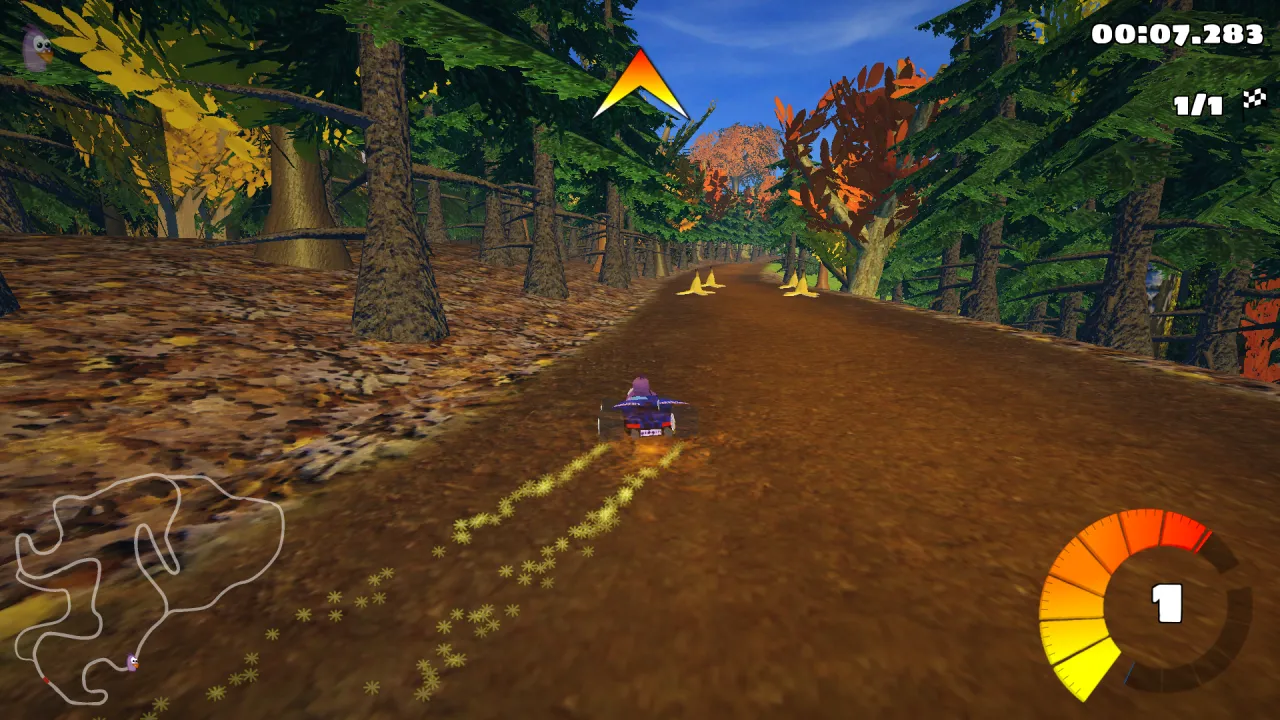
With V-Sync off, SuperTuxKart’s benchmark gave:
| SuperTuxKart, Windows, iGPU Start | Typical | Mostly stable | Windows CPU |
|---|---|---|---|
| 1080p | 111 fps | 96 fps | 56 % |
| 720p | 182 fps | 155 fps | 56 % |
3. Streaming with Moonlight: what it costs
With the game running, we connected a Moonlight client and noted its performance overlay:
| Moonlight statistic (1080p, H.264) | Value |
|---|---|
| Server processing (capture + encoding), min / average / max | 5.6 / 8.0 to 8.4 / 15.1 ms |
| Frames dropped by the network or by jitter | 0 % |
| Decoding time on the client | 0.33 ms |
| Game frame rate with and without streaming | unchanged |
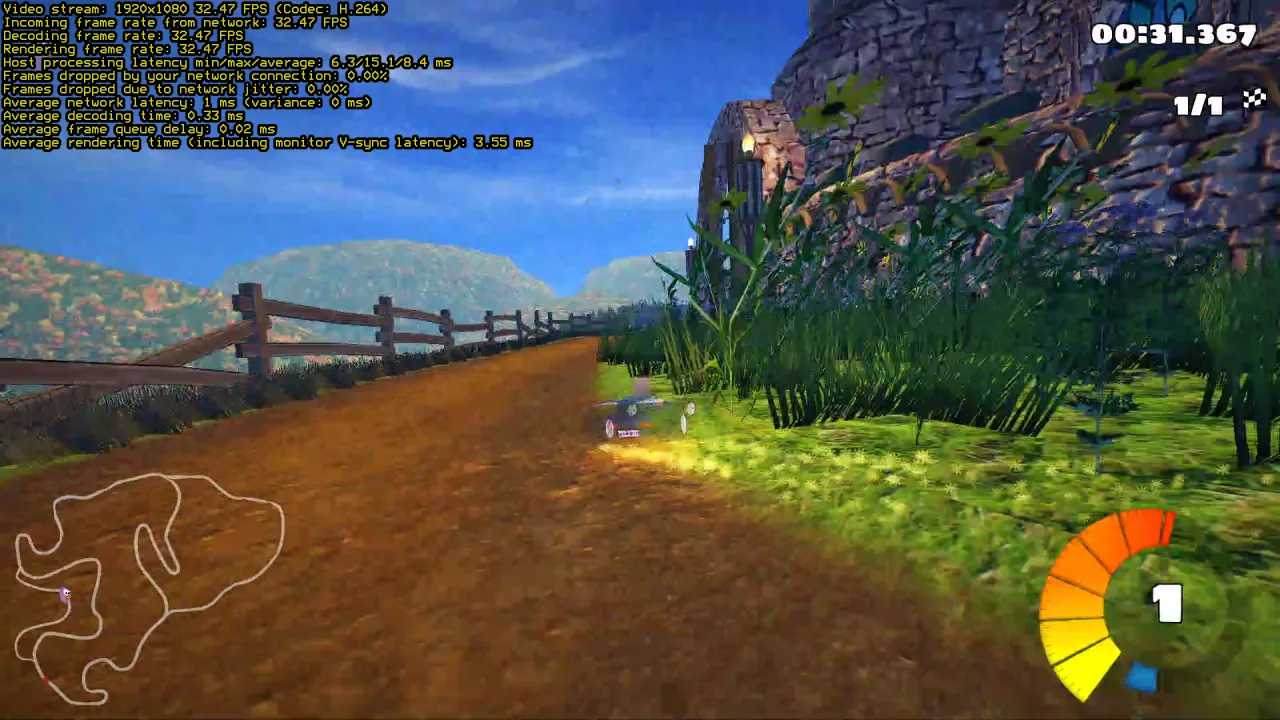
The encoder runs on the GPU’s media engine, separate from the 3D engine used by the game: that is why streaming does not lower the frame rate. Your total latency will mostly depend on your Internet connection to the server (Germany): a good fibre connection in Europe typically adds 10 to 30 ms.
4. iGPU Start or iGPU Power?
Two things decide it. The CPU: with V-Sync off, the game alone used 56 to 64 % of the 2 vCPU of iGPU Start, before Sunshine, Windows Update and your other programs. The GPU share: the GPU is shared, and when other servers use it at the same time, iGPU Power gets twice the GPU time of iGPU Start, which means fewer frame drops. For games on Windows we recommend iGPU Power (4 vCPU, 14 GB of RAM, twice the GPU share of Start). iGPU Start remains fine for office software, remote desktop and old 2D games.
5. Set it up on a Linux GPU server
Want it ready to play? Ask for it by email when you order (contact@linuxgpu.eu): we can deliver the Windows server with everything below already installed and set up (Intel driver, virtual screen, Sunshine). You only install Moonlight on your own computer, phone or TV box and pair it.
To do it yourself:
- Order iGPU Power with the Windows 11 option (€10, paid once): Windows 11 Pro is installed for you, with the Intel graphics driver, Remote Desktop and SSH.
- Connect with Remote Desktop, install Sunshine and the Virtual Display Driver, and set
adapter_nameas above. - Open Sunshine’s web interface through an SSH tunnel
(
ssh -L 47990:localhost:47990 Administrator@your-server), create the Sunshine account and pair Moonlight (Windows, macOS, Linux, Android, iOS, TV boxes). - In each game, turn off V-Sync. In Moonlight, choose H.264 or HEVC and 60 fps.
- Use Moonlight to play and Remote Desktop for the rest: opening a Remote Desktop session takes over the Windows session that Sunshine streams.
Your server is reached over IPv6 by default. If your connection has no IPv6, add the dedicated IPv4 option.
Prefer to avoid Windows altogether? Many Windows games also run on Linux with Wine: see running Windows games on a Linux GPU server with Wine, where the same game reached about 95 fps at 1080p. Also read our shared GPU load test.
Systems ready for gaming out of the box. The systems we install by default are already set up for this: Debian 13 with a recent kernel (7.3), the Intel GPU drivers and Mesa (OpenGL, Vulkan, VA-API video encoding), and Windows 11 (option) with Intel’s graphics driver and Remote Desktop rendered on the GPU. No driver to hunt for: install your game and Sunshine, and play.
Try it
See the plans: iGPU Power is €29.99 per month excl. VAT, plus €10, paid once, for the Windows 11 option.